Monday, October 27, 2014

Recommendation of 10 Creepy Halloween Wallpaper Images For Your Desktop

We here have recommended top ten creepy wallpaper images for your desktop or start screen, would you like to have a sharing?

After several days the biggest festival---Halloween is coming! So are you ready to how to celebrate it in a special way? Today here, we will show you the most popular creepy Halloween wallpaper images for your desktop, I’m sure you will be shocked by these amazing pictures!

NO.1 GoodFon
Here you can search wallpapers by keyword in a specific category, sort by relevance, downloads or rating, etc. For example, the following picks are coming from GoodFon. All are available in a number of different resolutions. The one best matching your screen is selected automatically. To download another resolution, pick from the ‘Select Resolution’ drop-down menu or manually change the size; both options are available in the bottom right corner.

Girl with Crows:

Burning Scare Crow:


Castle and Night Owl:


No.2 Zastavki:
With rich contents on this website, you can search by  keyword, then sort by date, downloads, rating, or randomly. The results page is relatively plain, but the selection makes up for that. All images come in various resolutions, which are listed in the bottom right of the wallpaper page. As the following examples:

Halloween Celebration:


Ghost Bride:


No.3 Desktop Nexus
It is still one of the better resources for wallpapers. Pick a wallpaper you fancy, then either click Enlarge Wallpaper (bottom right of image) or Download Now! (right-hand sidebar). If the automatically detected resolution isn’t right, click Options (top of new windows) to select the right size. I’m sure it won’t let you down.

However, some images are automatically blown up in size, even though the original resolution is much smaller. To avoid a blurry wallpaper, make sure the original resolution isn’t smaller than what you’d like to download. Since the site doesn’t offer great sort options, I went out and looked for the best and most recent Halloween-related downloads to share with you. Just as follows:


No.4 Wallpapers Wide:
This one has a vast  selection of high resolution wallpapers. You can browse by categories, latest, top rated, or keyword. To hover over the thumbnail, click the title area (red frame in screenshot below), and pick a resolution from the list. It’s the best method of selecting wallpapers. It’s so horrible that do not be scared of them.


No.5 Wallpapr
This is a wallpaper search engine using wallpaper groups on Flickr. Results are limited to 100, which is plenty. Wallpapr’s best feature is the lack of annoying ads. This one looks great on the Windows 8 and 10 Start Screen, if you only have apps listed on the left-hand side. Just like this;


Tips on how to change your wallpaper in Windows:
Method one: The lazy way is to open the folder it downloaded to, right-click it, and choose Set as desktop background from the menu.


Method two: If you would like to rotate between different wallpapers, I recommend another route. Search fordesktop background (Windows 7 & 10: Click Windows key and type away; Windows 8: Click Windows key + S, make sure to search everywhere or Settings, and type your query), then open Change desktop background from results. Here you can switch the picture location of your wallpaper to a dedicated folder, filled with your favorite Halloween or other desktop backgrounds


Then you can set your the picture position and choose how often your desktop background should change.


Hey, guys! All of you are getting ready for the coming of Halloween? If you wanna record some Halloween videos, here also we can recommend you the Pavtube HD Video Converter to convert your videos in order to share or upload on website also with another for free! Let’s just have revelry Halloween Topic!

More:

Friday, October 24, 2014

How to Rip Blu-ray/DVD/ISO to Sony Xperia Z3/Z2

The article guides you how to rip and convert Blu-ray/DVD movies to Sony Xperia Z3/Z2 supported video formats on both Mac and windows easily.


Nice enjoyment of Sony Xperia Z smart ohones
As one of the best Android smart phones, the Sony Xperia Z comes with a 1080p “Reality” high resolution 5-inch widescreen, which gives users a good movie experience. There are many choices to enjoy movies with Xperia Z. However do you know the best video formats exactly for Sony Xperia series? MPEG4, H.263 or H.264, several video codec that it supports for the best.

Can Sony Xperia play Bly-ray DVD or ISO moives?
To be honest, sometimes, we can’t avoid to enjoy the some good movies that released recently or Blu-rays and DVD movies, right? If you want to get your movies off of DVD, Blu-ray discs and onto the Sony Xperia Z3/Z2 for playback, you may have to do some work in advance. I mean you’ll need to rip and convert Blu-ray/DVD to Sony Xperia Z compatible video formats first since there is no BD/DVD drive on gadget. So a Blu-ray to Sony Xperia Ripper for Mac/Windows may do you a big favor.

Some main step-by-steps so necessary for you to know here:
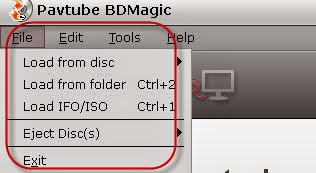
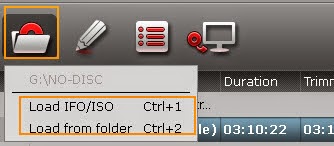
Download the program for the Windows version or Mac version, insert your Blu-ray disc into your BD drive on your computer and run the Blu-ray to Sony Xperia Ripper. On the man interface, click the ‘Load disc’ icon to load Blu-ray files, also, such like ‘Load from folder’ and ‘Load ISO/IFO’ are available. 


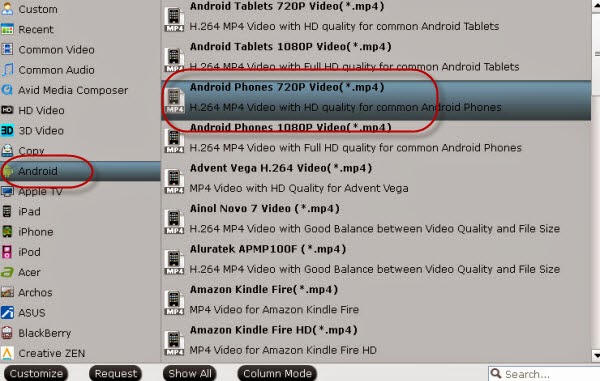
Click the output format dropdown list; you’ll get a lot of choices. For converting Blu-ray to Xperia Z3 Tablet Compact, you can select “Android > Android Phones 720P Video (*.mp4)” as output format. If you want to play 1080P movies on Xperia Z3 Tablet Compact, “Android 1080P Video (*.mp4)” is a better choice.


Highlight here, if you get some 3D Blu-rays movies for conversion, you can also find the item here ‘3D Video’ on the format list.

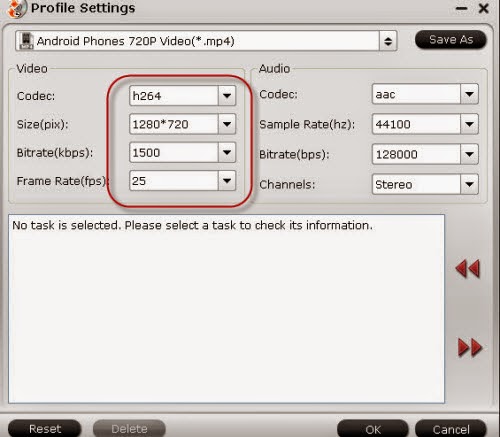
Tip: Click “Settings” to change the video encoder, resolution, frame rate, etc. as you wish. According to video testing result, for watching videos on the Android tablet, 720p with 1500~2500kbps is just all right. 


For watching on the go if you have finished you conversion work, welcome to leave some other comments or suggestions below.

More:

Wednesday, October 22, 2014

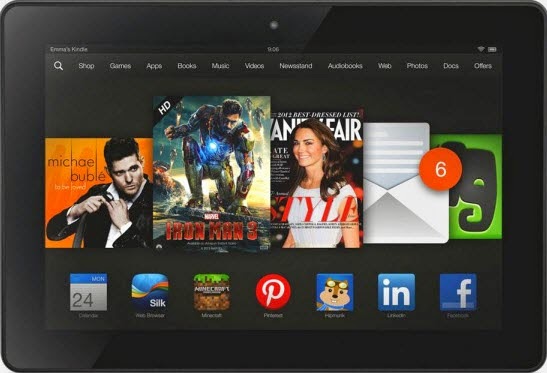
Watch Videos on Kindle Fire HD Kids Edition in MKV, AVI, MPG, VOB, FLV, Divx

This guide can tell you how to watch various videos on Kindle Fire HD Kids Edition such as MKV, AVI, MPG, VOB, FLV, Divx.


As long as more intelligent tablets appeared on market, so many adults or even children are fond of watching movies on handle tablets, such like the special one for kids, Kindle Fire HD Kids Edition. Sometimes, when downloading the videos from website or shot from cameras, they can’t be play smoothly on this device, right? Frankly speaking, with the limitation of the formats that Kindle Fire HD tablet decides, a video converter is necessary.

Another question: Do you know exactly the compatible formats for Kindle Fire HD Kinds Edition? For a further recognization, it is listed below:

Documents: AZW, TXT, PDF, MOBI, PRC, DOC, DOCX
Audio supported within Music: MP3, Non-DRM AAC (.m4a), MIDI, OGG, WAV
Images: JPEG, GIF, PNG, BMP
Video: MP4, VP8

It doesn’t matter you have a large amount of videos encoded by MKV, AVI, MPG, VOB, FLV or Divx, etc. We here recommend you the Pavtube Video Converter for Windows/Mac, two different versions both for Windows or Mac users.

Load your source files from ‘Add video’ in this program when you have launched it on your computer. Follow my steps, on the ‘Format’ list, click the ‘Android’>>Amazon Kindle Fire HD (*.mp4) for the best. Or you can search the ‘MP4’ in the searching box.


Especially for Windows version here, we have the acceleration item in the ‘Opinions’.  Get it if there is an NVIDIA/AMD graphics card that supports CPU en-decoding acceleration installed on your computer, as the picture shows here:


Before you click the ‘Convert’ to start your work, why not make your output videos more suitable with Kindle Fire HD tablet, in ‘Settings’ button, for a reference, make the video size as 1280*720, frame rate as 29.97 and bitrates as 3000? Finally, open here to know the main methods of transferring files in Kindle Fire HD tablet.


Related articles:

Monday, October 20, 2014

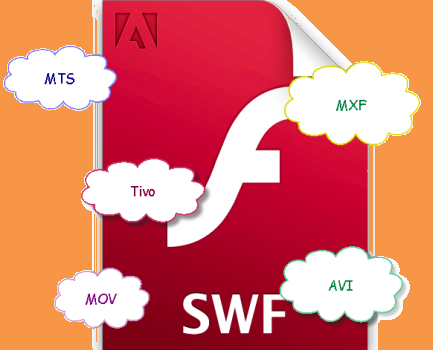
Freely Convert MTS, MXF, MOV, AVI, MP4, Tivo to SWF on Windows 8.1/8

This guide especially introduce us some video formats such like MTS, MXF, MOV, AVI, MP4 and how to convert them to SWF on Windows 8.1/8.


Got trouble of editing or playing video because of compatibility issues? No worries any more if you read this article and try the methods it mentioned here. Back to the topic, for some common video formats such like MTS, MXF, MOV, AVI, MP4, Tivo, is there any solutions to convert them all to SWF in a general way?

A big surprise for everybody here! Freely video converter for SWF? Pavtube Free Video DVD Converter Ultimate---your all-in-one solution to rip, encode DVD and convert even edit videos in one place. You can quickly convert virtually any video and audio files to various formats, surely SWF is included. 

Additionally, we have released the latest version out so for those who have downloaded the program, you can upgrade it for the latest experience. Also, we here mainly introduce the upgraded functions and difference between the free version and official version of this converting tool.

                                              Version 1.1.0                   Version 4.7.0
Formats supported                various video formats       various video formats
DVD to common videos         except for MP4                  support all 
Directly/Entire Copy             can’t do this                      supported
Simple editing                        supported                         supported
Conversion speed                  6X faster speed                 6X faster speed

Everybody can upgrade in this way here. What’s more, follow the paper to know the specific steps of converting videos to SWF:  

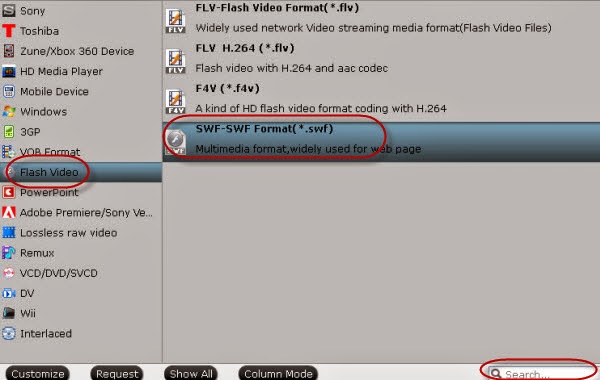
Launch your program and load source files with ‘Add video’ or ’Add from folder’. They will listed on the main interface, for output ‘SWF’ files, just go to the ‘Flash Video’ for ‘SWF-SWF Format (*.swf)’, you won’t miss it. 
Tip: in search box, you can also find the output item you want, it can save you some trouble. 


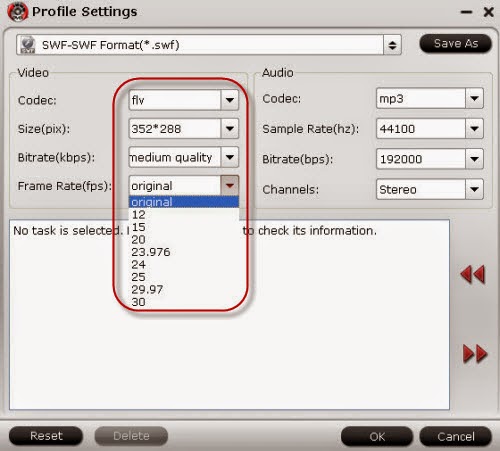
Before you click the ‘Convert’ icon, you’ll find more in ‘Settings’ button such as frame rate, bitrates or audio channel. With default or something by yourself? Just according to your adjustments here.


Attention: One of the highlights in this program is we can also rip DVD movies, with the similar loading steps, choose one format for the output, so easy to work the program well, right?

More:

Free Useful Information for iPhone 6/6 Plus from Pavtube Studio

Pavtube Studio just released iPhone 6/6 Plus topic page related to everything you should know about iPhone 6 and iPhone 6 Plus, the brand new mobile phones announced by Apple recently to reach the new high of all Apple phone devices. 


The 4.7-inch iPhone 6 and the 5.5-inch iPhone 6 Plus with a complete redesign and a much larger screen size than any iPhone that came before catch people’s eyes at the moment Apple announced their release. Even with a slightly larger screen, the iPhone remains comfortable to hold. With fast performance, a great display, an elegant new design and a much-needed software update, it's one of the best smartphones you can buy right now.

With the increasing number of people become Apple fans and would-be users, there was the need for a topic page to be able to link everything about Apple new phones so that they could find a shortcut to learn more about the devices from all the aspects.

On Pavtube iPhone 6/ 6 Plus page, Apple fans can find hot news, useful tips, unique features, popular apps and almost everything related to the new iPhone 6/6 Plus in order to get familiar with these two devices. 

More importantly, this special page also features with tips & Solutions about how to transfer movies, watch videos, and share joys on iPhone 6 and iPhone 6 Plus without time and space limits.

Saturday, October 18, 2014

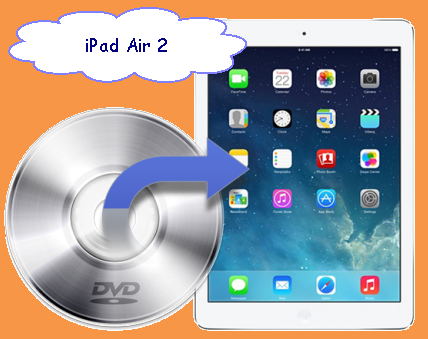
Rip DVD to iPad Air 2 in an Efficient Way?

Any good news for ripping DVD to iPad Air 2 for playback? Please follow this article to find the truth.


For the Next-generation iPad Air, what’s your expectation?
Good news for everybody! Apple has released the new generation of iPad Air 2 recently which has a 9.7-inch LED-backlit IPS touch screen and up to 1536 x 2048 (~264 ppi pixel density) resolution. Powered by Dual-core 1.3 GHz Cyclone (Apple A8X-based) along with Retina display at 2,048 x 1,536 ( 2K), the latest iPad Air 2 will surely deliver even better movie enjoyment experience than its predecessors. For now, do you get an idea of pursuing the new product?

Still a limitation between DVD and iPad Air 2? Any solutions?
For those people who love DVD so much, there is still a problem with iPan Air 2.  It has limited storage space like many other portable devices and Apple doesn't seem to load a DVD-ROM on the new iPad Air 2, which are still the issues with many DVD collectors since DVDs takes a lot of space and are nit-pick at portable players. What we need is a DVD to iPad Air 2 Ripper for Windows/Mac to rip DVD to the compatible format for iPad Air 2.

iPad Air 2 Supported Video Formats
H.264: Resolution up to 1080p, 60 frames per seconds; High Profile level 4.2; AAC-LC audio, bitrate up to 160 Kbps, 48kHz, stereo; .m4v, .mp4, .mov file formats.
MPEG-4: Resolution of 640 X 480, 30 frames per second, Simple Profile; AAC-LC audio, bitrate up to 160 Kbps, 48 kHz, stereo audio; .m4v, .mp4, .mov file formats.
Motion JPEG: Resolution of 1280 X 720, 30 frames per second; audio in ulaw, PCM stereo audio, .avi file format.

More details of ripping DVD to iPad Air 2?
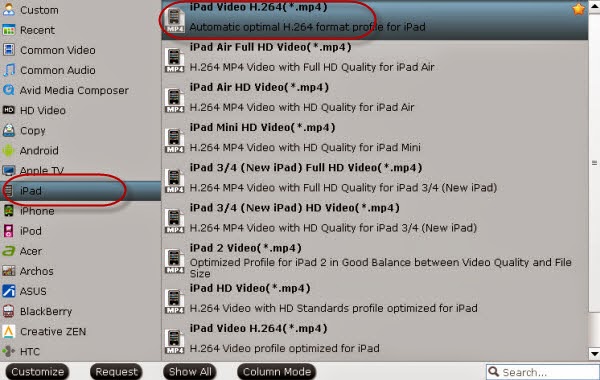
Download the program and click the ‘File’ on left corner, just select one in ‘load file from DVD disc’, ‘load file from folder’ or ‘load ISO/IFO files’. On the ‘Format’ list, we can find the item ‘iPad’ easily, for the high quality of output videos, we can select the ‘iPan Video H.264 (*mp4) as the best selection. Tip: not only for iPad, but also for iPhone devices or galaxy, it can also work well.


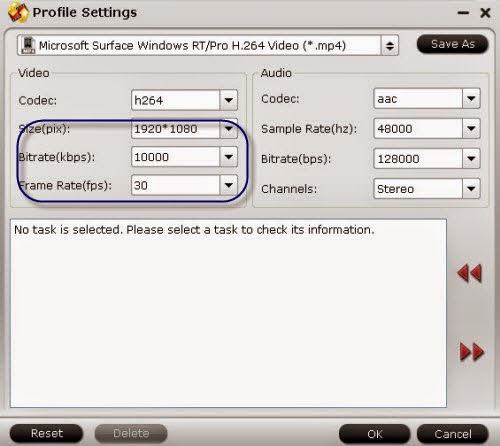
In order to play output videos with a perfect enjoyment, we can adjust videos as what we want in ‘Settings’ button. Put the video size as 1920*1280 and the frame rate as 30fps,etc.


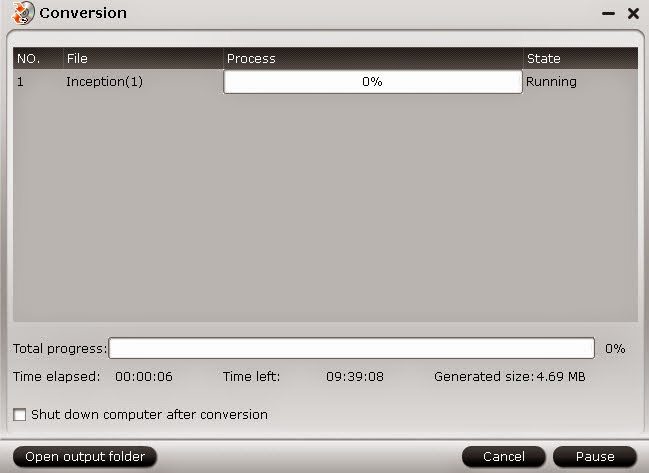
Finally, click the ‘Convert’ item to start the conversion and open here to find the answer to how to sync videos from iTunes to iPad.

More:

Thursday, October 16, 2014

Backup Jurassic Park 3D Blu-ray Disc to M2TS, MKV, MP4, M4V, AVI, WMV

Have you heard of the 3D Jurassic Park has been released as 3D Blu-ray Disc? This guide can teach you how to enjoy it with M2TS, MKV, MP4, M4V, AVI,WMV.

Forever love with Jurassic Park--- scriptures in our hearts.

Jurassic Park is a 1993 American science fiction adventure film directed by Steven Spielberg. It has brought a great influence to our audience who love adventure films so much during these years. Now, this film has been released as 3D Blu-ray Disc on the market. With the vivid effect and wonderful enjoyment experience, how could we preserve the work in other video formats? Such like M2TS, MKV, MP4, M4V, AVI, WMV?

How to backup Jurassic Park 3D Blu-ray Disc on Windows or Mac?


For freely and perfectly backup Jurassic Park 3D Blu-ray Disc with the 3D and high quality preserved, we here introduce you a professional 3D Blu-ray Converter for Windows/Mac, which can 1:1 backup Blu-ray movies with no quality loss. Two methods here you can choose to back them up in a general way.

Preparation for backup 3D Blu-ray movies:


1.Download the program and launch it on your computer.
2.load your 3D movies in with ‘Add ISO/IFO Files’ or ‘Add from folder’. 

Method 1 for backup:

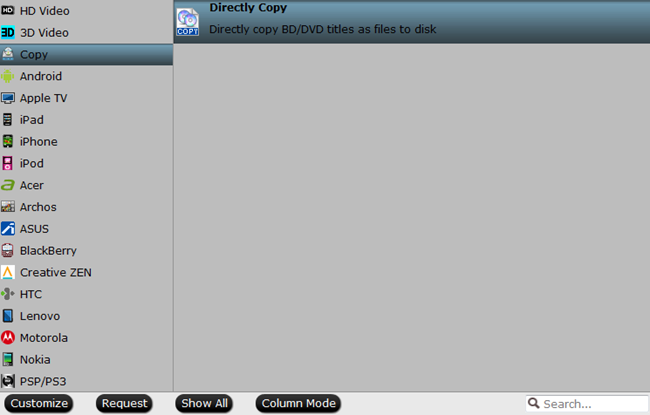
Click the format bar to choose “Copy > Directly Copy” to backup or copy your Blu-ray movies. Please note that the trial version only allows a 6-time directly copy.

By default setting, Pavtube BDMagic will automatically recognize the main movie which has been checked after loading Blu-ray movie. As for the directly copy here, you need to check all the title boxes. This method is only for the main movies and also, the output put blu-ray videos are encoded as M2TS


Method 2 for backup:

On the interface, could you find the item ‘copy the entire disc’? Click it you’ll see the tip as ‘you have only 3times for full disc copy’ go to ‘OK’ to start the copy. Don’t forget to set your output video location on your computer. As the picture shows here.


Play Jurassic Park 3D Blu-ray movies on devices with MKV, MP4, M4V, AVI, WMV?

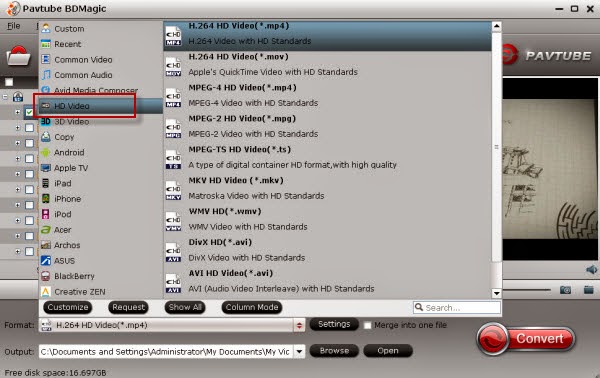
Except for the function of copy, additionally, this program can make it possible to play 3D Blu-ray movies with other formats for such as iPhone, iPad or some tablets, etc. Just back to the interface, click the ‘Format’ bar for ‘HD Video’, you can find all the common videos formats there you want. Take the following picture as a reference.


Do you wanna continue the legend of Jurassic Park enjoy the shocked vidion effects just on your devices? Come on! Let’s do it right here right now!

More guides?

Tuesday, October 14, 2014

Change YouTube Audio Files into MP3, M4V, FLAC, AAC, OGG?

Download some audio files from YouTube and don’t know how to make them work in MP3, M4V, FLAC, AAC or OGG etc? Just follow this article here.


Do you like watching YouTube videos online or on some media players after downloading? Do you ever meet the trouble there is no voice or something wrong with the audio when playing the videos? Non-native audio with incompatible devices, that’s the point. 

Fortunately, there are already some popular online audio converters such like ‘Zamza’ , ‘YouConvertit’, etc that can make it easier to get the YouTube videos work well, but have you ever known there is a kind of video converting tool can convert the video and audio files to others you want at the same time? Today here we introduce you a substantial tool named YouTube Audio Converter for Mac/Windows for you, which has the capacity of showing the wonderful video and audio effects for us. 

Almost all common audio formats you may know supported in YouTube Audio Converter such as MP3, M4V, FLAC, AAC, OGG, etc. Here let’s show you some necessary tips on how to work the program well.

Special Remind here: For those DVD or Blu-ray lovers, you won’t miss the big discount here, ByteCopy+Video Converter Ultimate can meet your requirements. From the discount, you can save nearly 30 dollars. Various videos, DVD or Blu-rays can all be accepted in this bundled product. What a big surprise!

Here we got some tips on how to work well with YouTube Audio Converter for Windows, take a reference? You won’t be disappointed.

Download this program from the official website and load your files in two ways, for method 1. Drag your files from computer to the program interface. For method 2. ‘Add video’ from the main interface.

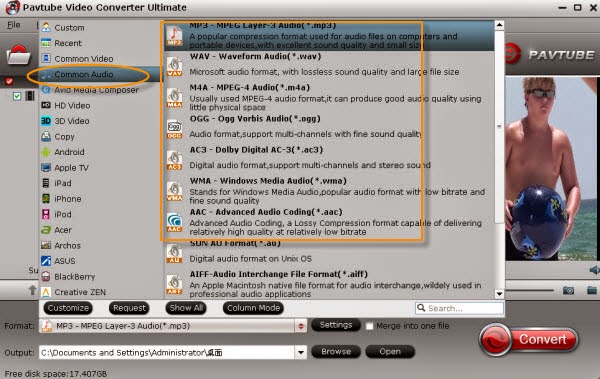
Then from the ‘Format’ button, you may see some special video formats listed for popular media players or editing tools, also for different audios, ‘Common Audio’ to such as ‘MP3-MPEG Layer-3 Audio (*.mp3), M4A MPEG-4 Audio (*.m4a) or AAC Advanced Audio Coding (*.aac), etc. Just fine one you need.


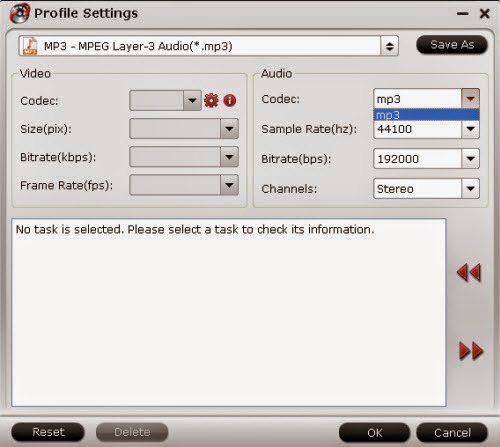
Especially for audio converting users, you may pay more attention to the audio quality, so don’t miss the ‘Settings’ here. Get into the interface and find the ‘Audio Channels’ for ‘Stereo’, ‘Mono’ or ‘5.1 channels’.


As soon as you get the work done by click the ‘Convert’ button, if you get any other opinions or suggestions, please leave some message below. Wish you a nice day!

More:
Friday, October 10, 2014

Import FLV Files to Keynote 09 Freely on Mac

No trouble in importing FLV files to Keynote 09 on Mac if you have read this page below.


Hello, guys! Welcome to this page and take part in the discussion about how to import FLV files to Keynote 09 for a freely editing. Firstly, have you guys got any FLC videos that wanna edit or play in editing software or media players? As the FLV video format appears frequently on some video websites like YouTube, etc. 


For FLV, it is a container file format used to deliver video over the Internet. We usually download some flash or short videos from website for watching or disposing. However, as the special format, it can’t be accepted by most editing tools or media players. So have you ever think it will be easier if you convert FLV files to other compatible formats?

Today here we have found a professional FLV to Keynote Converter for Mac to solve this problem. Maybe you don’t know the best format for Keynote is MOV. How to work Keynote 09 well with FLV files we may learn from the following page.

Preparation: Download the FLV to Keynote Converter for Mac for a first step.

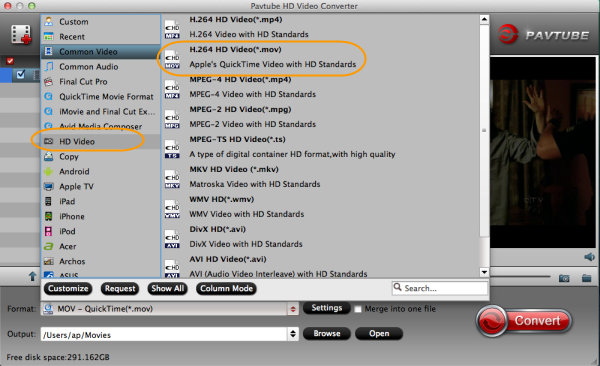
Launch the program, drag your FLV files from your computer to the program main interface or load your files by ‘Add video’ and ‘Add from folder’. Then to keep the original video quality preserved, choose the format list ‘HD Video’ and select the item ‘H.264 HD Video (*.mov)’ as the output format.


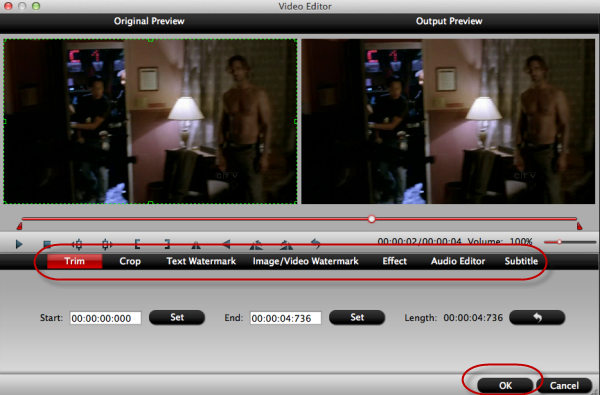
For more users, this program is not only a converting tool but also a simple editor. From the pencil icon ‘Editor’, we can see more editing items in. Something like ‘Trim’, ‘Crop’ or ‘Effects’ you can have a try by yourselves.


Additionally, if you got some FLV video clips, here also you can ‘Merge them into one’ by the item ‘merge into one’ on the left of the ‘Format’ button. You can see the icon below. Finally, we’ll be appreciate if you give more suggestions at the end.


Related guides:

Wednesday, October 8, 2014

AVI Video has only Audio but no Video in Premiere?

When you import AVI videos in Premiere with no video but audio, you may take the following article as a reference.


For different video files in different media players or editing software, we should know better for a first step if they are compatible or not. Recently here we have got a question on why import AVI video in Premiere only with audio but no video. It seems something like this:

‘The file plays perfectly in VLC however it’s running into problems with Premiere. When I import the AVI it only imports the audio. I tried to get around this by using a batch file to change the wrapped to mp4, however the video appears as a green screen on the source and preview windows.’

Cause the VLC has the automatic video and audio settings itself, it can support most video formats. So for AVI video, we can’t freely edit it in Premiere Pro because of the limited video formats. Sometimes there may cause such problems like ‘only audio no video’. If you get the AVI Video Converter for Mac/Windows to convert your AVI videos to MPG, MOV or WMV, the best formats for Premiere, everything will be easier. You can have a try by this way here:
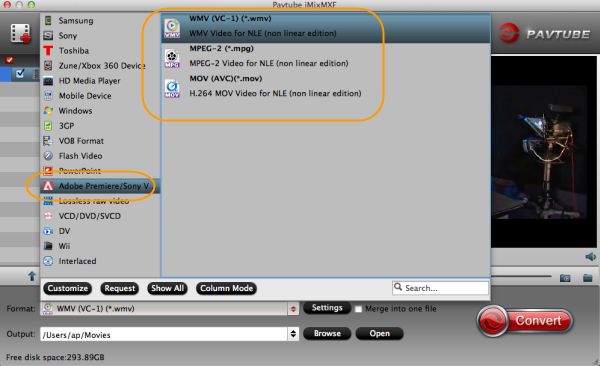
Load the AVI Video Converter and launch it to get into the interface, two buttons you can import your AVI files, ‘Add video’ and ‘Add from folder’. Then we come to the important step, choose your favorite Premiere video format. On the ‘Format’ bar list, From ‘Adobe Premiere Pro’ to ‘MPEG-2 (*.mpg), MOV (AVC) (*.mov) or WMV (VC-1) (*.wmv), just choose one as your output video.


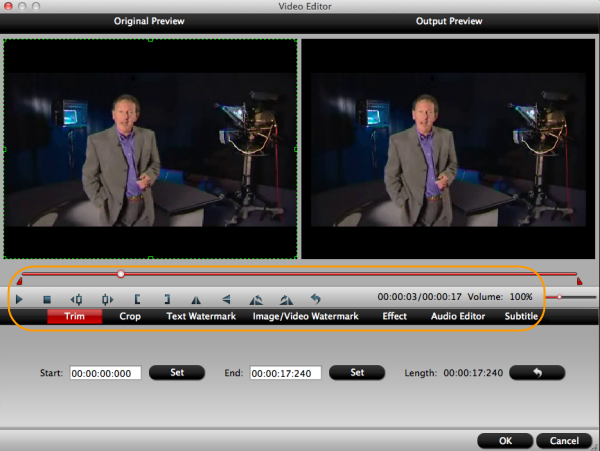
For advanced users or those just want to do some simple settings with your AVI videos, ‘Editor’ here you may have a try, add ‘subtitles’ to your videos, ‘trim’ to decide your video length or ‘crop’ to cut off the video edges you unwanted, etc.


Additionally, when you receive the output videos, if you are the first time to work with Premiere Pro, open here to find some surprise!

For more related:
Monday, October 6, 2014

How to Enjoy 4K Movies on Sony PS4

It must be cool if you are going to play 4K movies on Sony PS4. Follow this article to know more about it!


How much do you know about Sony PlayStation 4?--- the latest generation for video game enthusias
The PlayStation 4 system opens the door to an incredible journey through immersive new gaming worlds and a deeply connected gaming community. PS4 puts gamers first with an astounding launch lineup and over 180 games in development. You can even directly share your epic triumphs game experience with your friends by simply press the “Share” button. With the HDMI 2.0 cable connected, it has another high-light, it can supports 4K movie streaming. Do U want a try?

Play 4K moives on Sony PS4?


Generally speaking, although Sony PS4 can supports 4K streaming but not for all, such as recorded in MXF/RAW/XAVC/XAVC-S format. Cause 4K MP4 video format is the best format for PS4, we sometimes have to make these 4K movies available for PS4. Fortunately, we here recommend you a Pavtube 4K Video Converter to perfectly convert any 4K videos to PS4 also with high 4K quality reserved.

Preparation for conversion: download the program here and launch it in a correct way.

Run this 4K Video Converter and import your 4K files with ‘Add videos’ or ‘Add from your folder’. You files will be listed on left after the first step. Then another button called ‘Editor’ on the main interface above. You can optionally trim/crop the video, or you can adjust the video/audio parameter settings, modify the video volume, add special effect or watermark to the video. Like the picture showed below.


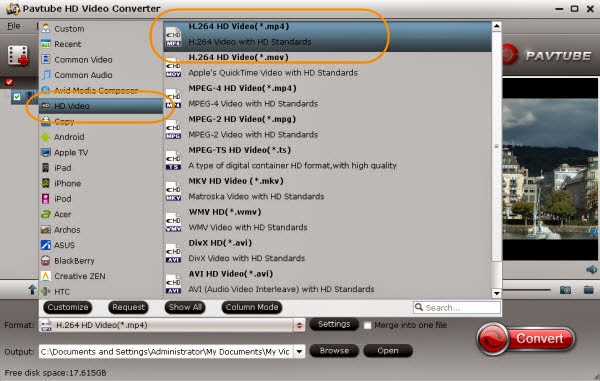
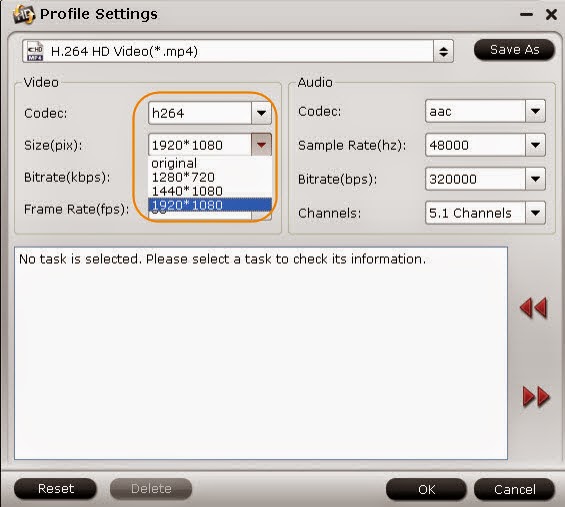
Next we come to the most important point, select the PS4 accepted output format. From ’Format’ bar to ‘HD Video’, we choose the ‘H.264 Video (*.mp4) as the best. After that, we also recommend you the ‘Settings’ item to make the default and optimal output video resolution for PS4 will be 1920*1080.


Finally, if you are satisfied with the output video effects, don’t forget to tell your friends. Or you can leave us some comments below to show your opinions.

Others:

Thursday, October 2, 2014

Transfer Video and Music files to Kindle Fire HDX from PC

For those Android users, this article can tell them some details about how to  transfer videos and music to Kindle Fire HDX from PC.


Fond of watching videos or listening to music on Kindle Fire HDX ? In fact , it is great to enjoy this if you have already learned to trans contents to

Android tablets well. If not, the article below can teach you how to transfer videos and music to Kindle Fire HDX. Let’s take a look.


In all, there are three solutions to make it smoothly on watching videos or listening music on Kindle Fire HDX. Please follow our steps.
Solution1. Transfer by USB date line

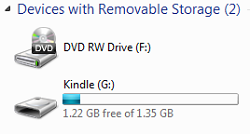
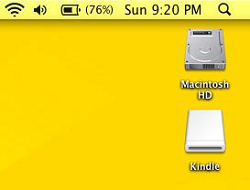
Solutin1.Connect your PC with your Kindle Fire HDX correctly and your device will be showed on screen like this, if they are locked, just put into your password to unlock it.
For Windows users:


For Mac users;


Additional tip: If your computer has OSX 10.5 or above or Windows XP system, your device can’t be detected well, so download the new software is necessary.

Then open the device appeared on your desktop and locate your personal files on your computer, including wanted videos and music. Here are some extra points you should know if you got any problems in this process.

Kindle Fire HDX supported formats:
Videos: MP4,3GP, VP8
Music: MP3, non-DRM AAC, MIDI, WAV, OGG
Documents: TXT, PDF,PRC,DOC,DOCX
Audio: AA, AAX

Solution2.With wireless network(for example Wifi) to sync your contents.
Make sure you have connected your tablet with wireless network. From Amazon Cloud, you can sync a lot of videos, books , music, photos or apps to your device. Can you see the button ‘Quick Settings’ on the top of the screen? Get into it and tap the ‘Sync All Contents’.

Solution3.Download videos or music with wireless cloud service.
Cloud service, special service for you to download or store your contents. Just as a third-party friend that can manage your files well. Open your kindle content library from Home. Tap the item above and download it to your device. Items stored in Cloud do not display a check mark.

Drop off some contents from your Kindle Fire HDX?
Open ‘Quick Settings’>>’Settings’, from your device, you can click the ‘Storage’ and then remove unwanted contents as videos,, music, photos or apps. Remember that if you want to remove your apps permanently, go to the App library on your device to delete them out of Cloud.

Other useful tips: As you can’t transfer all the videos or music to your Kindle Fire HDX such as non-native video formats, DVD, Blu-ray discs. Here we also have some professional converting tools individually for DVD, Blu-ray or non-native videos.

Pavtube DVDAid---for loading DVD to Kindle Fire HDX.
It is designed for those DVD lovers to converting DVD files to various kinds of video formats that suitable for Kindle Fire HDX, such as MP4, 3GP. Also it can convert DVD to H.264 with 6X faster conversion speed. You can downloadhere.

Pavtube BDMagic---specially for Blu-ray users.
With a high video quality converted by Pavtube BDMagic, we can freely make them accepted by our tablets. What’s more , 3D videos are also supported in this program. Have a try in this way.

Pavtube Video Converter---to make other non-native videos compatible with Amazon tablet. A n easy tool for operation and more personal settings you can adjust with output formats. GPU acceleration technology is available too. Do you waana a try?

Pavtube Video Converter Ultimate---both available for DVD, Blu-rays and common videos.
It is much more than a video converter with ripping DVD or Blu-rays to any video formats. A synthesis that includes three guys above. Download here to know more.

After reading the guide above, do you have any ideas about it? Welcome to show your opinions or comments below. For more guides about devices:

Monday, September 29, 2014

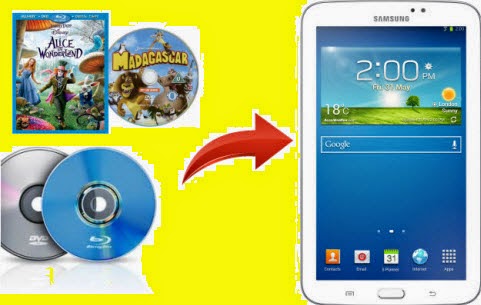
Rip Blu-ray to Galaxy Tab S 10.5 and 8.4 for Further Dispose

This post can offer some suggestions if you have an idea of playing ISO files on Galaxy Tab S 10.5 and 8.4 with no troubles.


Blu-ray Discs---Occupy a huge space at home?
According to some comments questions left on media columns online especially for Blu-ray discs, we here can give you some advice which we wish could do you a big favor. For example, as a Blu-ray collector said: You all know that Blu-ray indeed brought us unforgettable moments with high quality, but on the other hand, they also take up a huge space at home that my wife often complains about this.’

Have a try with ISO files on Galaxy Tab S 10.5?
As another friend reflects,’ Recently, I bought a new Galaxy Tab S 10.5 online, to have a experience of playing some high quality videos such like Blu-ray discs so that I can drop away my Blu-ray discs which bought a few years ago.’


Not a dream---play ISO files on Galaxy Tab S?
Cause Galaxy Tab S 10.5 or 8.4 video format is limited to H.264, H.263, MPEG-4, VC-1, etc. Here we introduce you a Blu-ray to Galaxy Tab Converter for Mac/Win to get off this trouble. Here are the main process for you to work with this program.

Load ISO files to Blu-ray to Galaxy Tab S Converter
Run the Pavtube BDMagic to load ISO image files with ‘Add ISO/IFO files’ or ‘Add from folder’. This program will help you analysis ISO files automatically so that there is no need to run virtual drive to mount ISO image files any more.


Right format for choosing with Galaxy Tab S
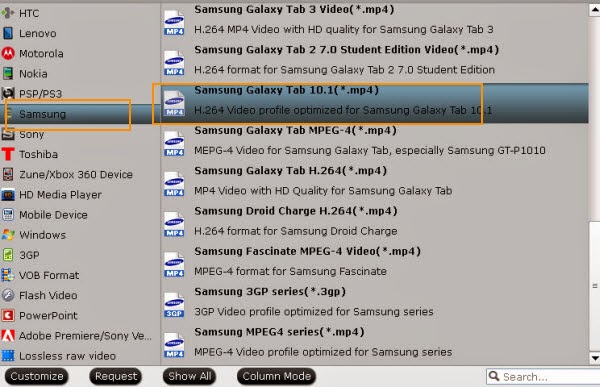
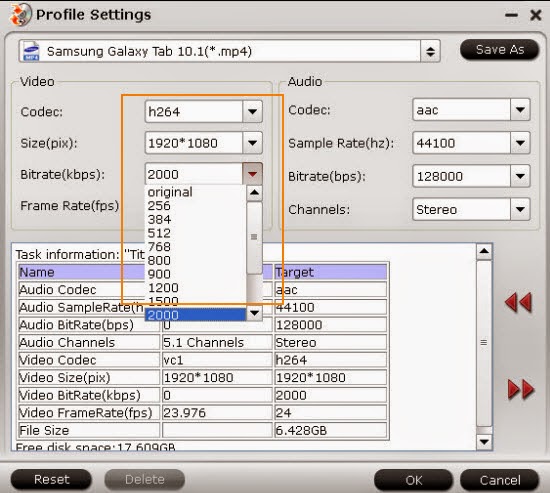
Click ‘Format’ button drop-down list to find ‘Samsung>>Samsung Galaxy Tab 10.1 Video(*.mp4) as the most compatible present for Galaxy Tab S 10.5 and 8.4.


Best settings for output videos with Galaxy Tab S
In order to get the most suitable adjustment for Galaxy Tab S, here we can get into the ‘Settings’ interface for video size as 1920*1280 and 2000~2500kbps are just all right.


Finally, we could click ‘Convert’ to start our conversion and wait for the result. For those new buyers with Galaxy Tab S, open here you will get some specific suggestions on transferring.

See also: